FAQ
FAQ (Frequently Asked Questions)
Getting Started - Download
Downloading your PnL App
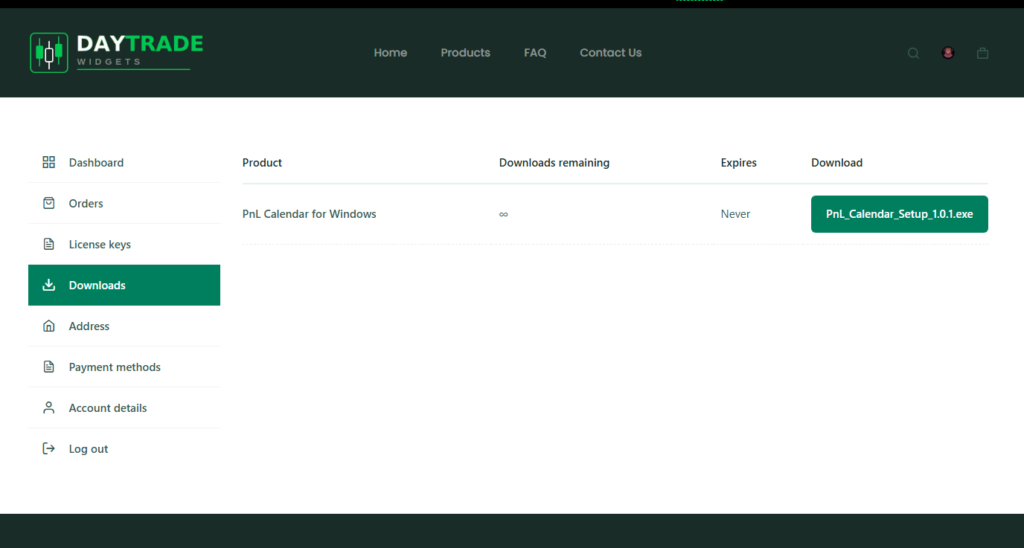
After purchasing the PnL desktop app, you will have instant access to your program. An email is automatically sent to you with your purchase details, the download link, and your activation key. Additionally, the download link for the newest version will always be available to you in your account section under ‘Downloads’ & ‘Orders’.
Download
Getting Started - Activation Key
Activating Your New App
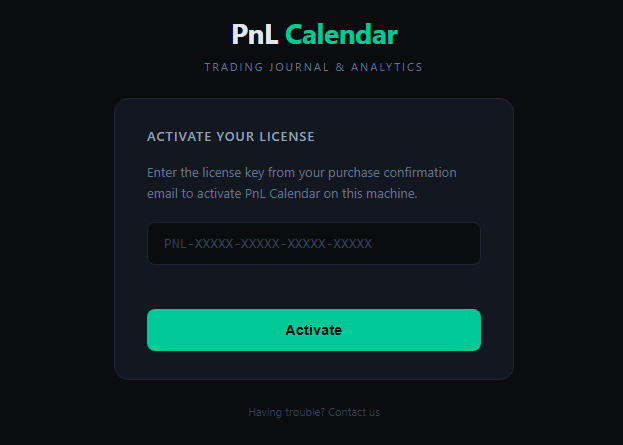
The first time you run your PnL Calendar app it will ask you for license key to link the program to your PC. The key is sent with your purchase email and is always available in your account dashboard under ‘License Keys’. Once activated, you are good to go and won’t be asked again.
Activate
Setting Up Your First Account
Accounts
Creating Accounts
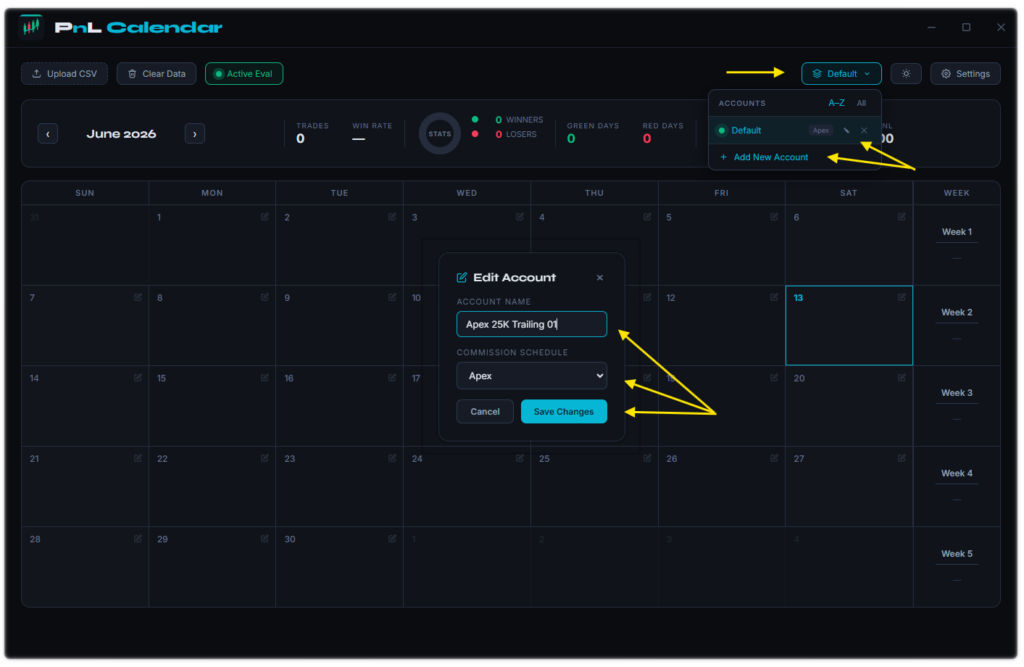
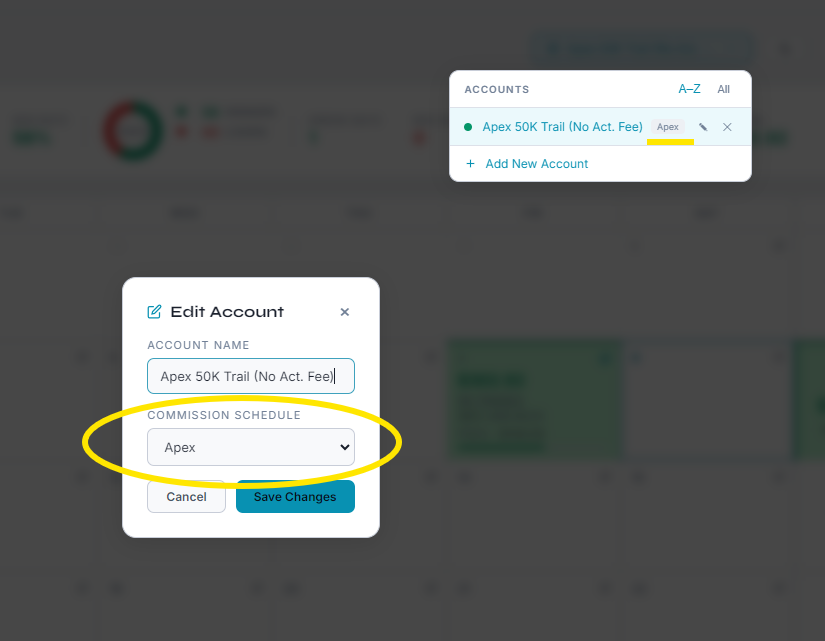
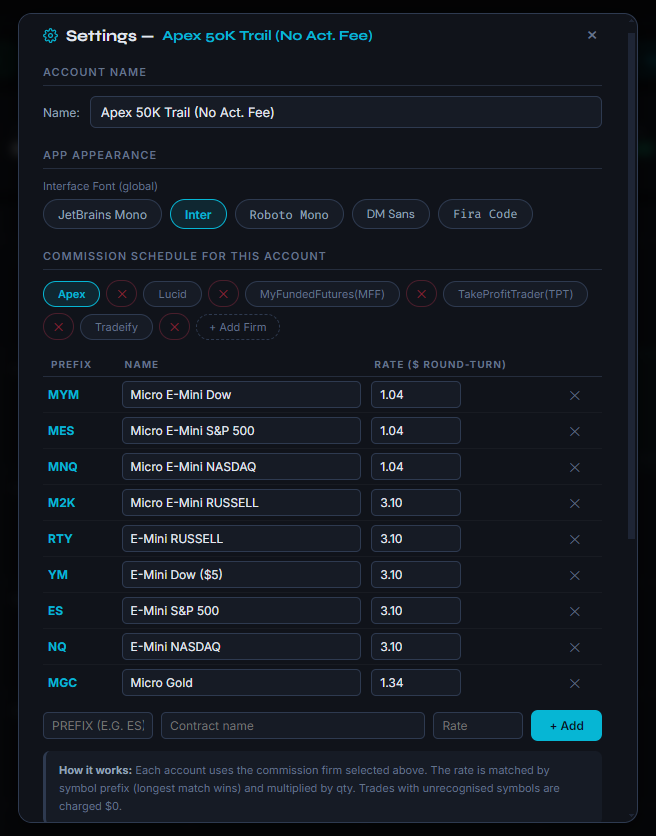
To create your first account, simply click the account button located in the upper right hand corner. Choose to either edit the ‘Default’ account or ‘+ Add New Account’. In the popup ‘Edit Account’, name your account and select your prop firm for accurate commission/fee calculations, hit ‘Save Changes’. That’s it, you just created your first account and are ready to start importing trades.
The account’s section can be used to edit account names or prop firms and makes it super simple to delete or create new accounts.
Importing Trades
Data
Importing Trades from Tradovate
Getting your trades from Tradovate is an easy straight forward process. You can either download them via the ‘Performance Center’ tab that you’ve added to your workspace or just click on the ‘Reports’ tab that is always anchored on the righthand toolbar (3 vertical lines). Here’s a tutorial from Tradovate: Account Reports & Trade Performance
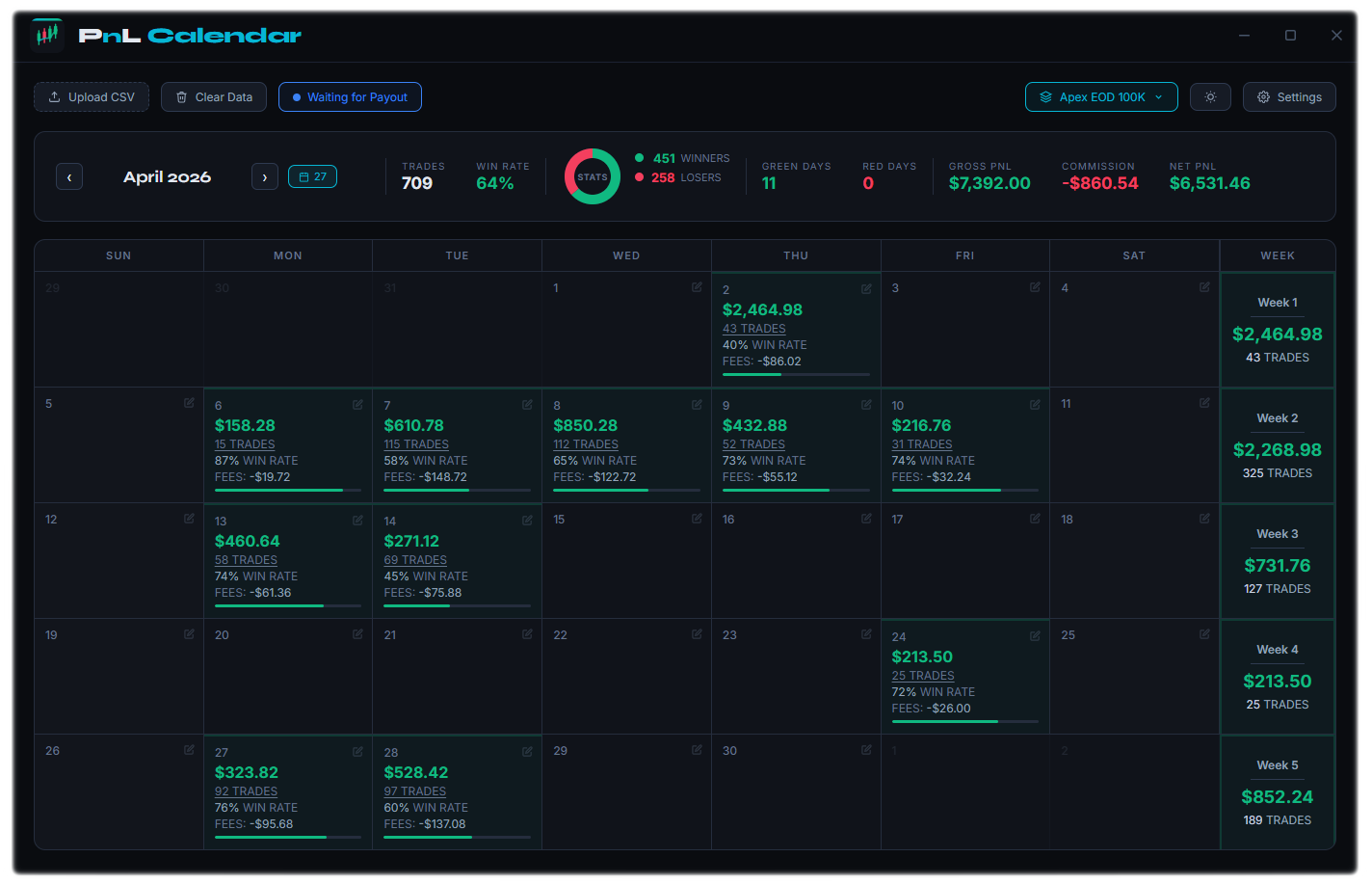
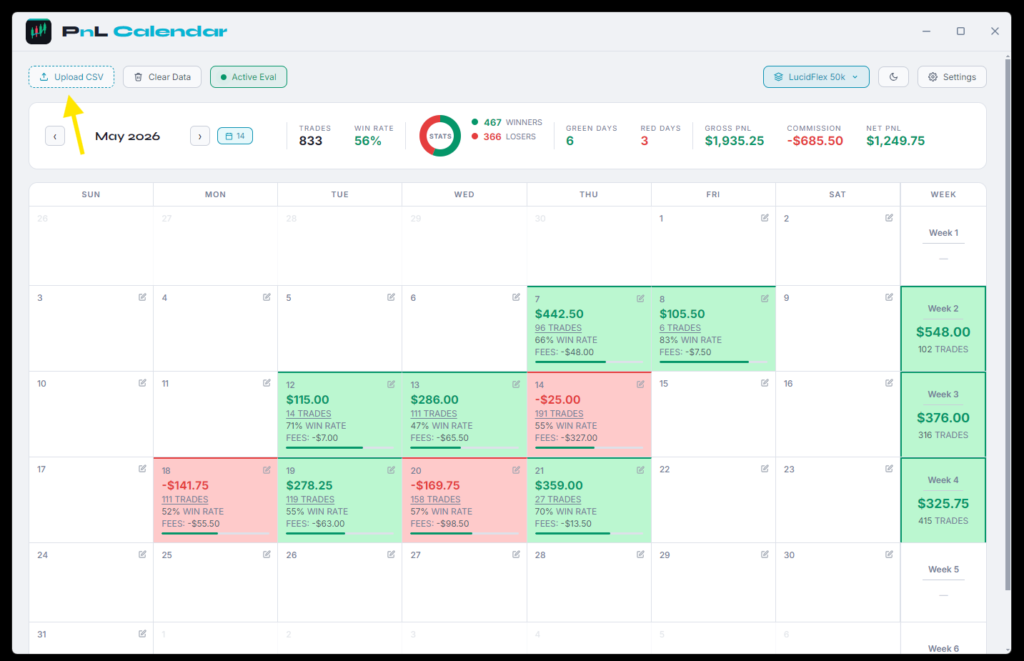
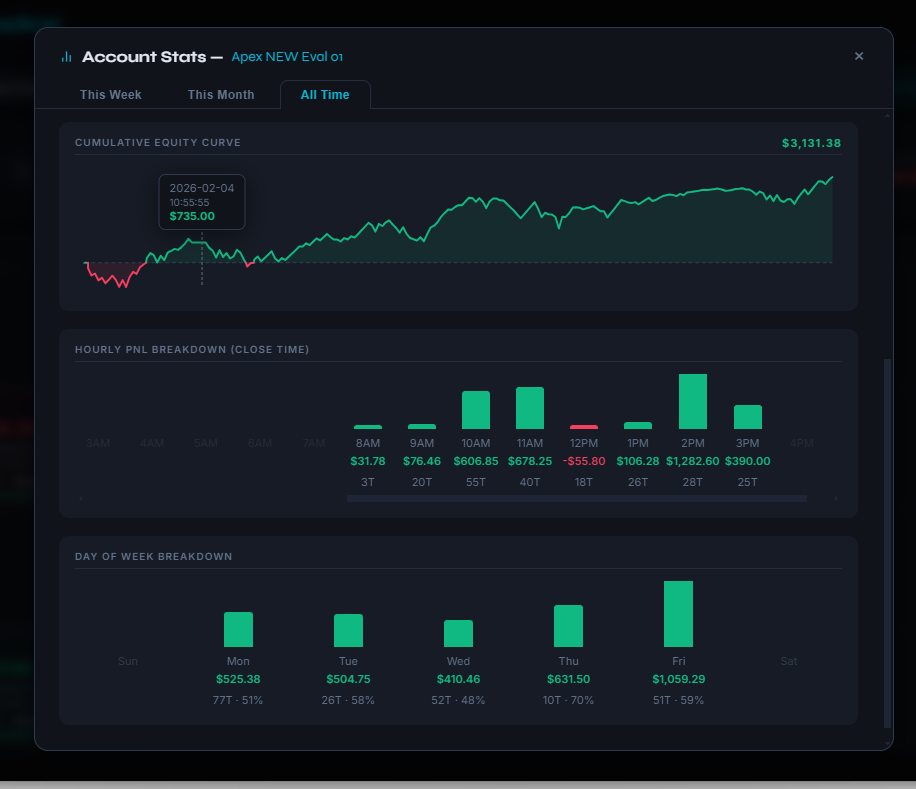
Once you download the CSV file from Tradovate. Click ‘Upload CSV’ in your calendar app, find the file (typically it goes into your ‘Download’ folder). Double click it or select it and hit open. That’s it, PnL Calendar then imports all your trades in the file. The app also analyzes and organizes all your trading data for future analysis, such each trade, hold times, Win/Loss stats, PnLs, equity curve, profit factor, etc…
Journal & Screenshots
Data
Importing Trades from Tradovate
Getting your trades from Tradovate is an easy straight forward process. You can either download them via the ‘Performance Center’ tab that you’ve added to your workspace or just click on the ‘Reports’ tab that is always anchored on the righthand toolbar (3 vertical lines). Here’s a tutorial from Tradovate: Account Reports & Trade Performance
Once you download the CSV file from Tradovate. Click ‘Upload CSV’ in your calendar app, find the file (typically it goes into your ‘Download’ folder). Double click it or select it and hit open. That’s it, PnL Calendar then imports all your trades in the file. The app also analyzes and organizes all your trading data for future analysis, such each trade, hold times, Win/Loss stats, PnLs, equity curve, profit factor, etc…
Trading Stats
Data
Importing Trades from Tradovate
Getting your trades from Tradovate is an easy straight forward process. You can either download them via the ‘Performance Center’ tab that you’ve added to your workspace or just click on the ‘Reports’ tab that is always anchored on the righthand toolbar (3 vertical lines). Here’s a tutorial from Tradovate: Account Reports & Trade Performance
Once you download the CSV file from Tradovate. Click ‘Upload CSV’ in your calendar app, find the file (typically it goes into your ‘Download’ folder). Double click it or select it and hit open. That’s it, PnL Calendar then imports all your trades in the file. The app also analyzes and organizes all your trading data for future analysis, such each trade, hold times, Win/Loss stats, PnLs, equity curve, profit factor, etc…
Backup Data
Data
Importing Trades from Tradovate
Getting your trades from Tradovate is an easy straight forward process. You can either download them via the ‘Performance Center’ tab that you’ve added to your workspace or just click on the ‘Reports’ tab that is always anchored on the righthand toolbar (3 vertical lines). Here’s a tutorial from Tradovate: Account Reports & Trade Performance
Once you download the CSV file from Tradovate. Click ‘Upload CSV’ in your calendar app, find the file (typically it goes into your ‘Download’ folder). Double click it or select it and hit open. That’s it, PnL Calendar then imports all your trades in the file. The app also analyzes and organizes all your trading data for future analysis, such each trade, hold times, Win/Loss stats, PnLs, equity curve, profit factor, etc…
PnLs Not Matching Trading Account
Data
Importing Trades from Tradovate
Getting your trades from Tradovate is an easy straight forward process. You can either download them via the ‘Performance Center’ tab that you’ve added to your workspace or just click on the ‘Reports’ tab that is always anchored on the righthand toolbar (3 vertical lines). Here’s a tutorial from Tradovate: Account Reports & Trade Performance
Once you download the CSV file from Tradovate. Click ‘Upload CSV’ in your calendar app, find the file (typically it goes into your ‘Download’ folder). Double click it or select it and hit open. That’s it, PnL Calendar then imports all your trades in the file. The app also analyzes and organizes all your trading data for future analysis, such each trade, hold times, Win/Loss stats, PnLs, equity curve, profit factor, etc…
Contact Us
Data
Importing Trades from Tradovate
Getting your trades from Tradovate is an easy straight forward process. You can either download them via the ‘Performance Center’ tab that you’ve added to your workspace or just click on the ‘Reports’ tab that is always anchored on the righthand toolbar (3 vertical lines). Here’s a tutorial from Tradovate: Account Reports & Trade Performance
Once you download the CSV file from Tradovate. Click ‘Upload CSV’ in your calendar app, find the file (typically it goes into your ‘Download’ folder). Double click it or select it and hit open. That’s it, PnL Calendar then imports all your trades in the file. The app also analyzes and organizes all your trading data for future analysis, such each trade, hold times, Win/Loss stats, PnLs, equity curve, profit factor, etc…
Affiliate Program
Data
Importing Trades from Tradovate
Getting your trades from Tradovate is an easy straight forward process. You can either download them via the ‘Performance Center’ tab that you’ve added to your workspace or just click on the ‘Reports’ tab that is always anchored on the righthand toolbar (3 vertical lines). Here’s a tutorial from Tradovate: Account Reports & Trade Performance
Once you download the CSV file from Tradovate. Click ‘Upload CSV’ in your calendar app, find the file (typically it goes into your ‘Download’ folder). Double click it or select it and hit open. That’s it, PnL Calendar then imports all your trades in the file. The app also analyzes and organizes all your trading data for future analysis, such each trade, hold times, Win/Loss stats, PnLs, equity curve, profit factor, etc…
Microsoft Blue Screen Warning
Data
Importing Trades from Tradovate
Getting your trades from Tradovate is an easy straight forward process. You can either download them via the ‘Performance Center’ tab that you’ve added to your workspace or just click on the ‘Reports’ tab that is always anchored on the righthand toolbar (3 vertical lines). Here’s a tutorial from Tradovate: Account Reports & Trade Performance
Once you download the CSV file from Tradovate. Click ‘Upload CSV’ in your calendar app, find the file (typically it goes into your ‘Download’ folder). Double click it or select it and hit open. That’s it, PnL Calendar then imports all your trades in the file. The app also analyzes and organizes all your trading data for future analysis, such each trade, hold times, Win/Loss stats, PnLs, equity curve, profit factor, etc…